Cluster intercom
Overview
In the CMSV client, a cluster intercom group account enables unified dispatch and intercom communication among multiple body cameras. The following steps describe how to create and configure such an account.
Steps
Step 1: Log in with the Admin Account
- Log in to the CMSV client application using the Admin (System Administrator) account.
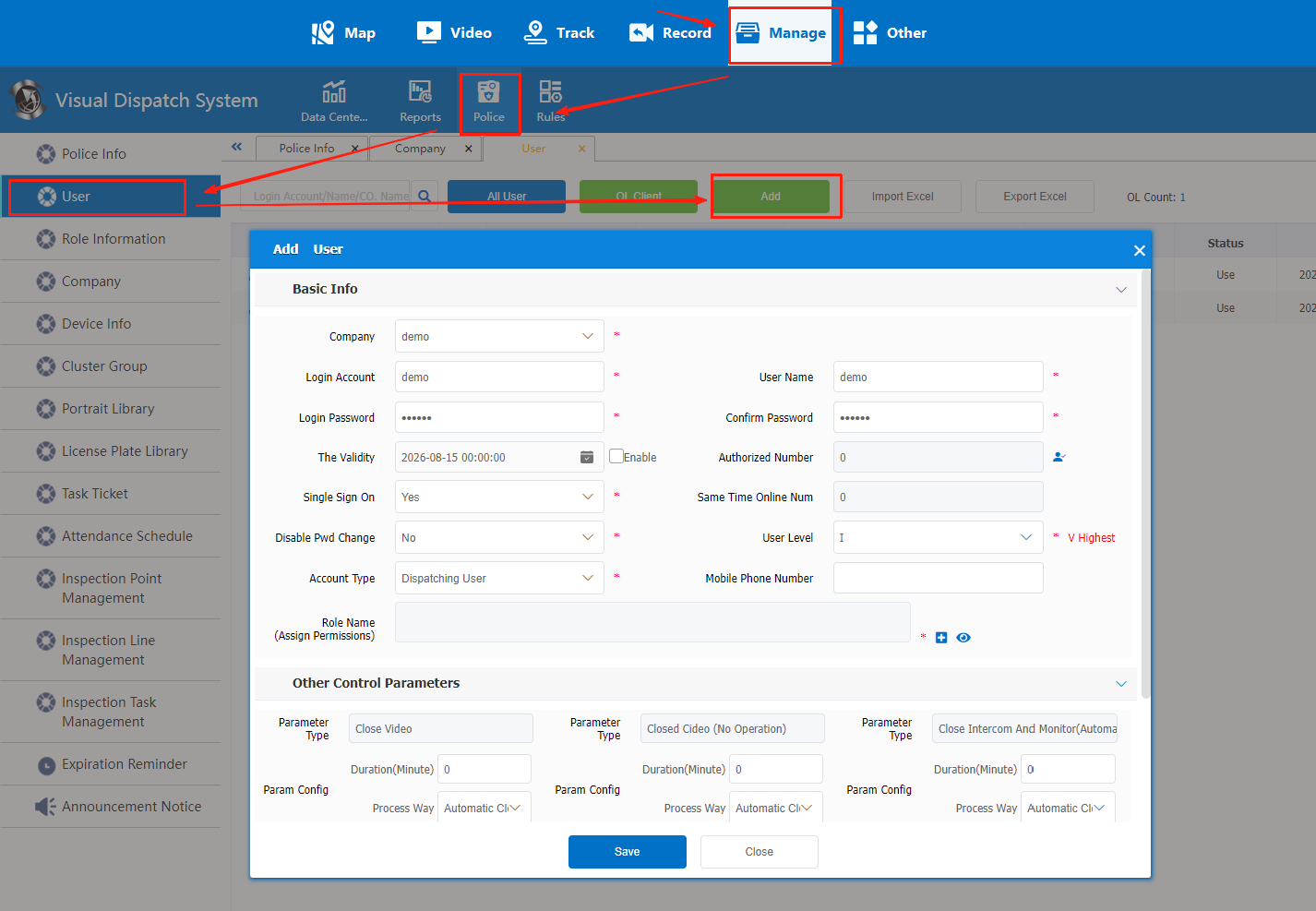
- Click “Manage → Police → User → Add” to open the user creation interface.
Step 2: Create and Configure the User
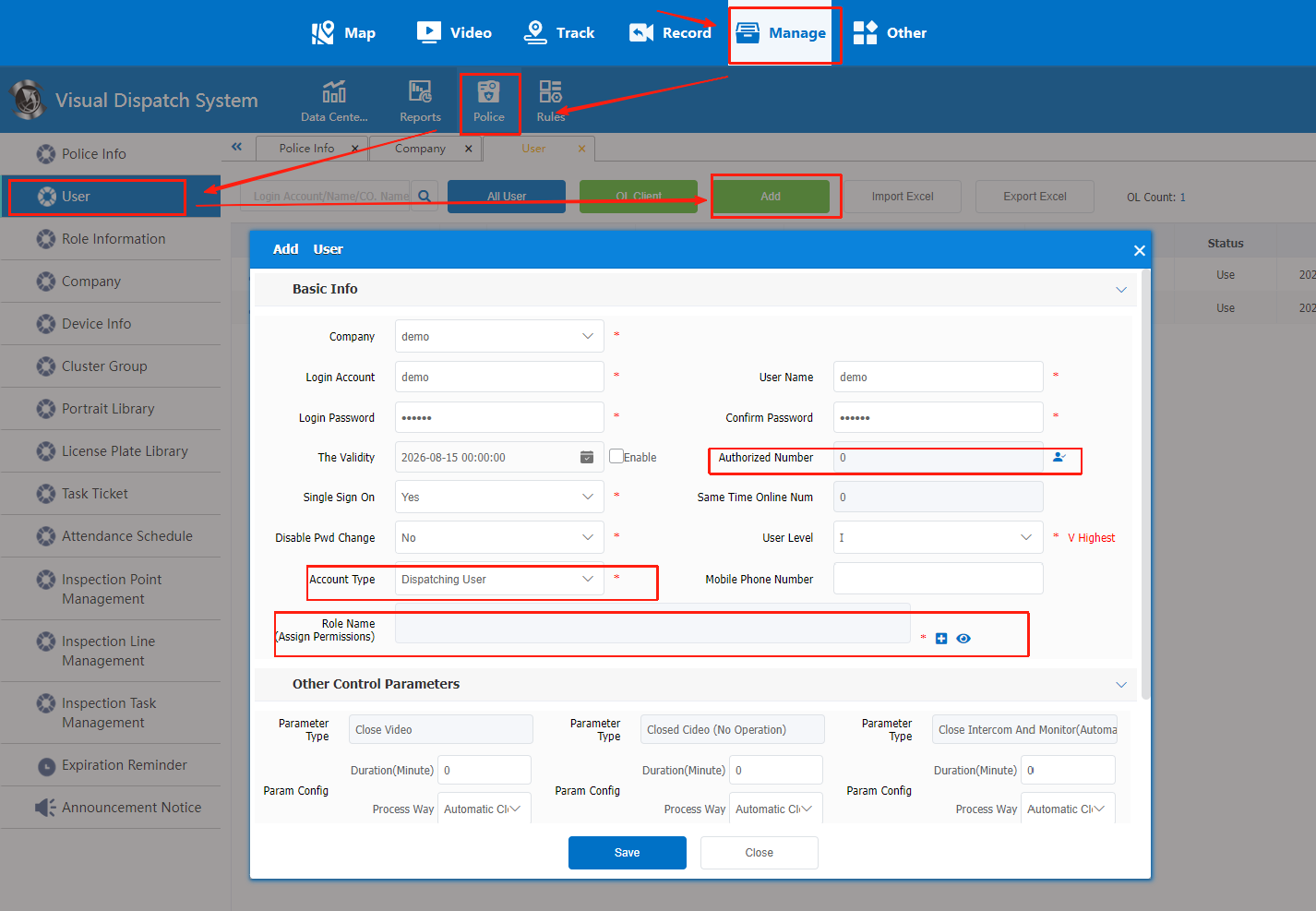
- Fill in all required fields marked with an asterisk (*).
- Click “User” next to “Authorized Number” to authorize all required Device IDs.
- In “Account Type”, select “Dispatching User”.
- Click “+” next to “Role Name” to assign the necessary permissions.
- Save all settings.
Step 3: Create a Cluster Group
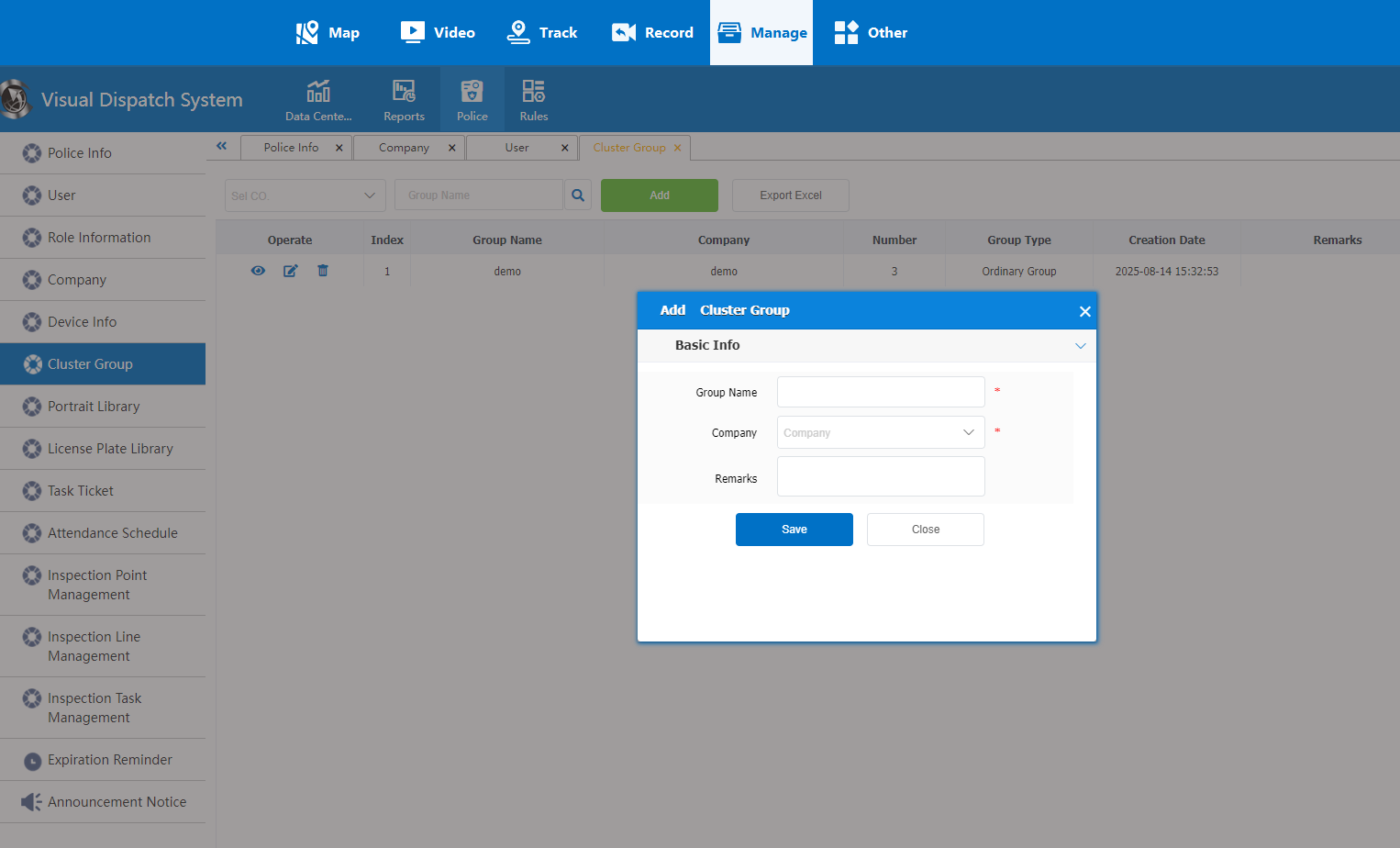
- Click “Cluster Group → Add”.
- Fill in all required fields marked with an asterisk (*)
Step 4: Add Group Members
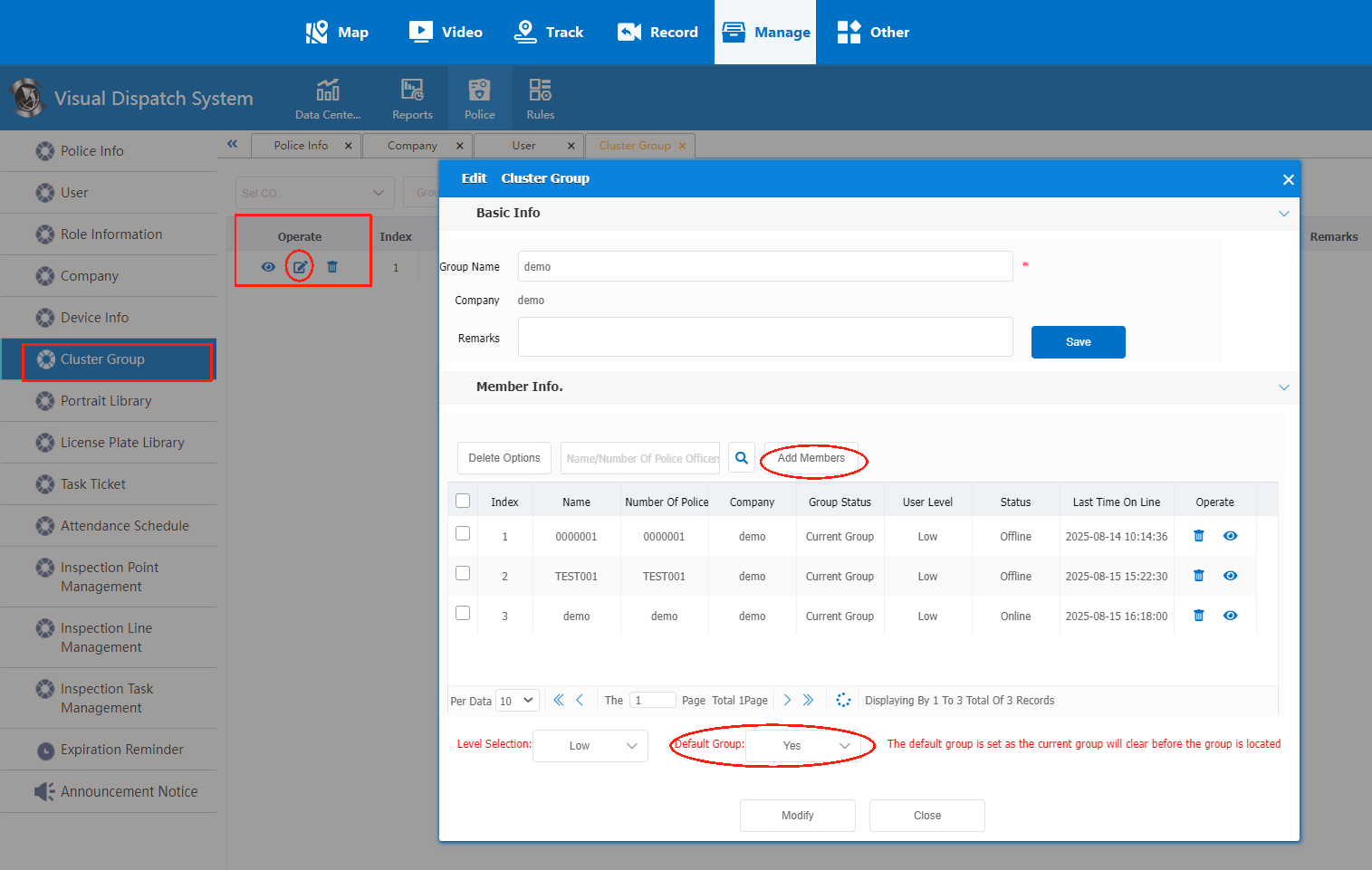
- In the “Operate” column, set the “Group Name”.
- Click “Add Members” to add all required Device IDs.
- Select all added devices and click “Modify” to save the settings.
Step 5: Test and Log In
- Log out from the Admin account.
- Log in with the cluster intercom group account created in Step 2 to verify the configuration.