Video Playback – How to Search Historical Recordings
CMSV Video Playback – How to Search Historical Recordings
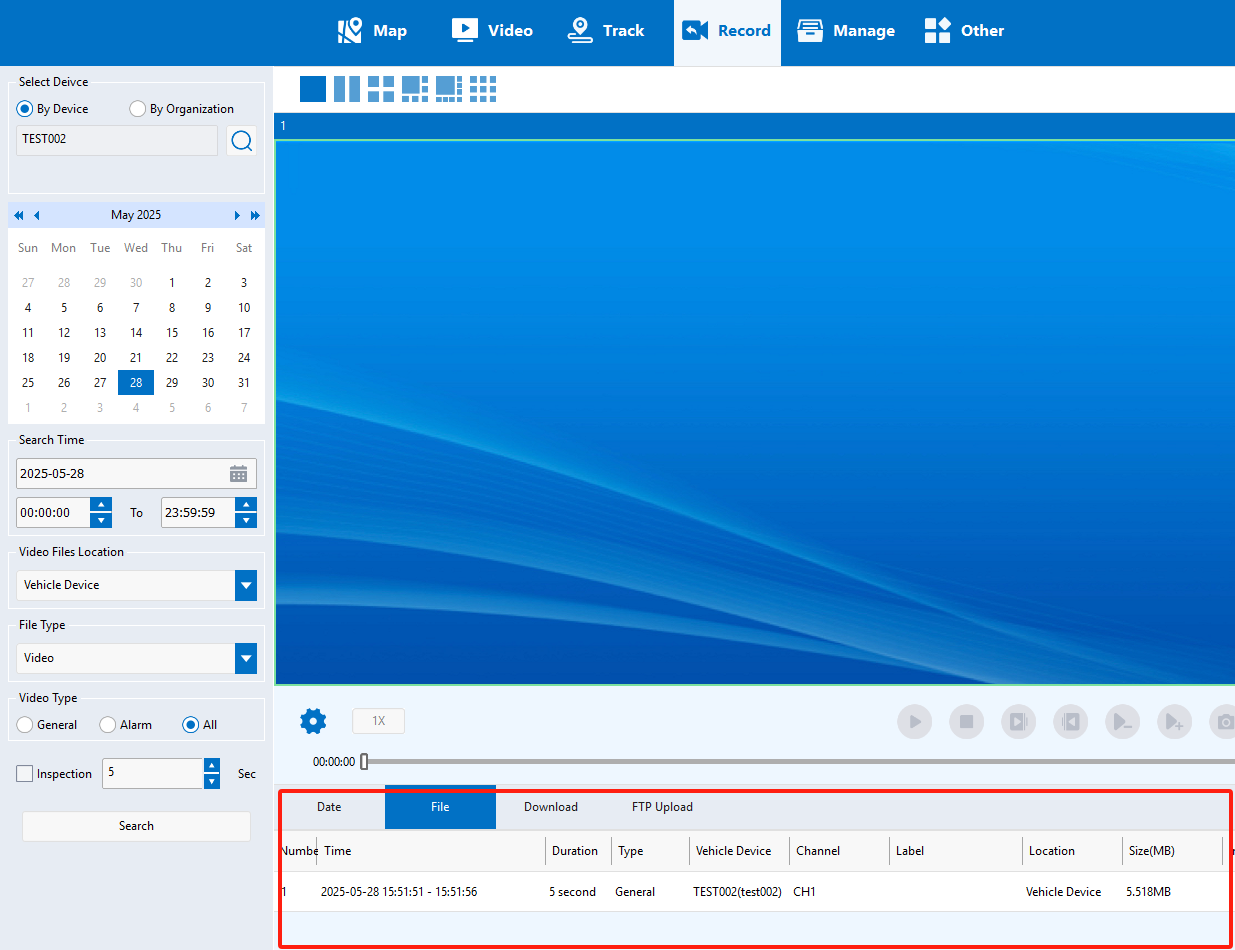
The CMSV client allows users to quickly search historical video recordings through various filters such as time range, device ID, and storage location.
Steps to Search Video Recordings:
1. Enter the Playback Module
- In the main interface, click on the “Record” menu to enter the video search page.
2. Set Search Criteria
In the search interface, you can combine the following filters flexibly:
- Search by Time:
- Select the start time and end time;
- The system will display all available recordings within the selected time range.
- Search by Device:
- Choose the specific device ID from the device list;
- Multiple devices can be selected for batch querying.
- Search by Storage Location:
Choose the location where the video is stored, including:- Vehicle Device: Recordings stored locally on the device;
- Storage Server: Videos that have been uploaded to and stored on the central server;
- Local Disk: Recordings cached or saved on the current client computer;
- Download Server: Files downloaded based on WiFi download rules.
3. Click “Search”
- After setting the desired filters, click the “Search” button.
- The system will display a list of recordings that meet the criteria.
4. Playback or Download
In the result list, you can directly click the Play button to view the recording;
You may also choose to export selected video segments.