Viewing Videos Recorded by the Terminal Device Camera
Overview
This article explains how to use CMSV to view video files recorded directly on the terminal device (body camera).
Steps
- Open the CMSV software.
- Click the Record option from the top menu.
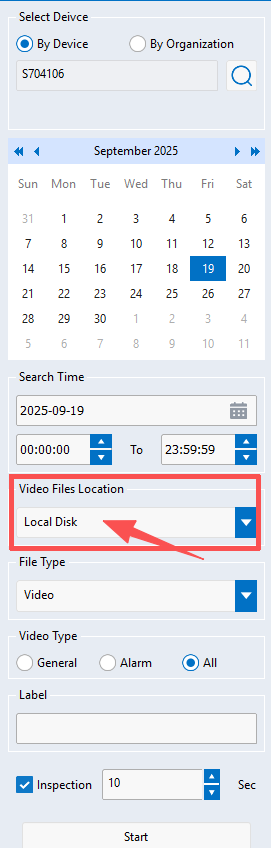
- In the Device Serial Number drop-down list, select the target device.
- In the Footage Storage Location field, select Terminal Device.
- Set the search conditions as needed (e.g., date, time range, event type).
- Click Search/Retrieve to view the videos recorded by the selected device.
Notes
Ensure the device is properly connected to the CMSV client.
If the device storage is full, it may not be possible to record or retrieve new videos.