How to Bind a Body Camera and Bring It Online on CMSV
1. Create a CMSV account and add device IDs
2.Use Cam Manager to modify the Device ID and CMSV IP
Key Steps
1). Configure Device ID and CMSV Server IP
Using Cam Manager, update the following settings:
- Device ID
- Set the Device ID to match the one registered in your CMSV account.
- This is usually the 7-digit number labeled at the bottom of the camera.
- CMSV Server IP
- Set the CMSV IP to: 18.193.78.55; or replace it with your own server’s static IP address if applicable.
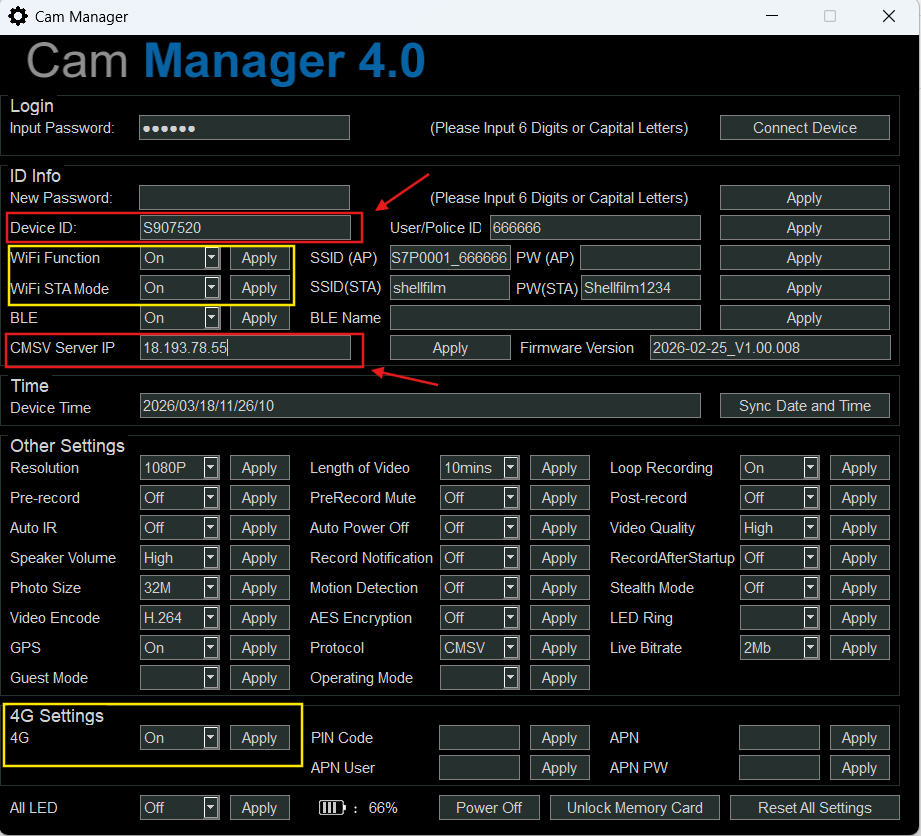
2). Configure Network Connection
Depending on your usage scenario, choose one of the following connection methods:
Wi-Fi Connection
- Enable Wi-Fi on the device
- Enable Wi-Fi STA Mode
- Enter the correct SSID (Wi-Fi name) and Password
- Ensure the device successfully connects to the target Wi-Fi network
4G Connection
- Turn on 4G function on the device
- Insert a valid SIM card
- Ensure the device successfully connects to the cellular network
3). Device Online Status
After completing the above configurations: