How to Automatically Delete Historical Videos?
To save storage space and maintain organized data management, the DEMS system supports an automatic deletion feature for historical videos. Follow the steps below:
1. Access the "Setting" Interface
Log in to DEMS with an administrator account and open the Setting module.
2. Configure Retention Days
Locate the relevant option in the settings and specify the number of days to retain video files (e.g., 30 days). Files older than the set retention period will automatically be scheduled for deletion.
3. Set Different Data Lifecycles Separately
The system allows you to configure separate retention policies for different types of data:
- Lifecycle of Data: For regular files such as videos, images, and audio recordings.
- Lifecycle of Important Files: For files marked as important or protected by encryption, typically critical evidence requiring an extended retention period.
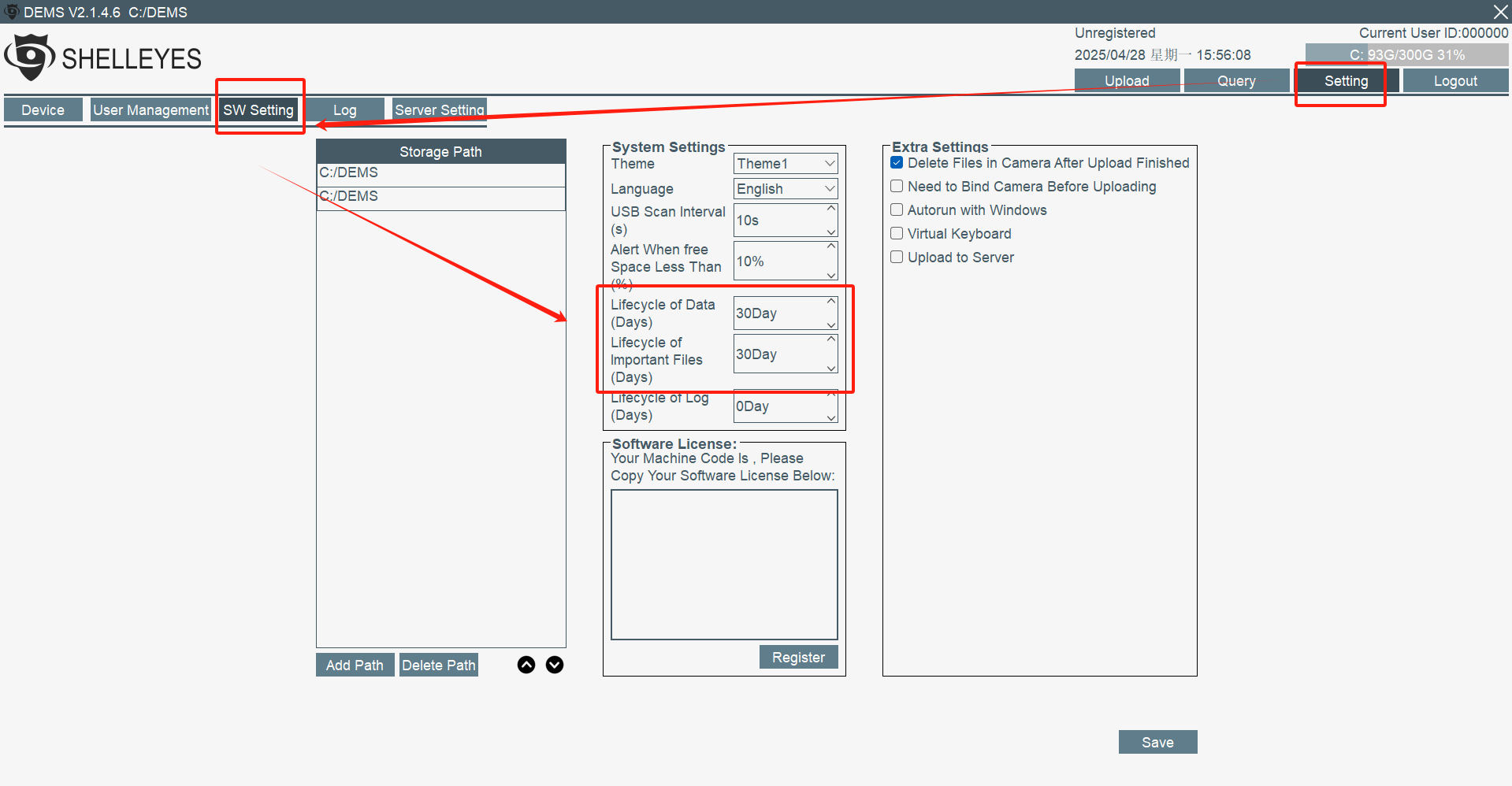
4. System Automatically Executes Cleanup Tasks
After configuration, DEMS will periodically scan and automatically delete videos and related data files that exceed the specified retention time — no manual intervention is needed.