How to solve the failure of CMSV online video playback?
When using CMSV to perform remote recording on online devices, some users may find that the recording was successful but the file cannot be played. Typically, the file appears to be saved but cannot be opened with a standard media player. This issue is usually caused by the recording file format settings or player compatibility with the video codec.
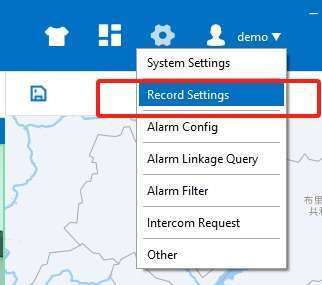
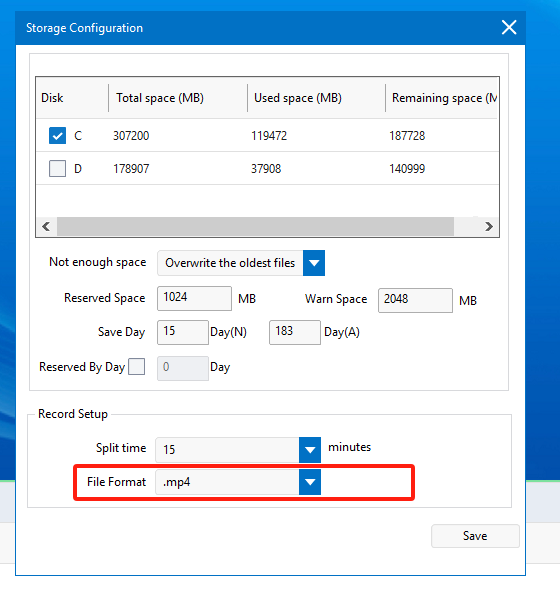
Solution 1: Modify CMSV Playback Settings
This is the simplest and most recommended solution.
By changing the file format to the widely supported .mp4, most media players should be able to play the recording directly.
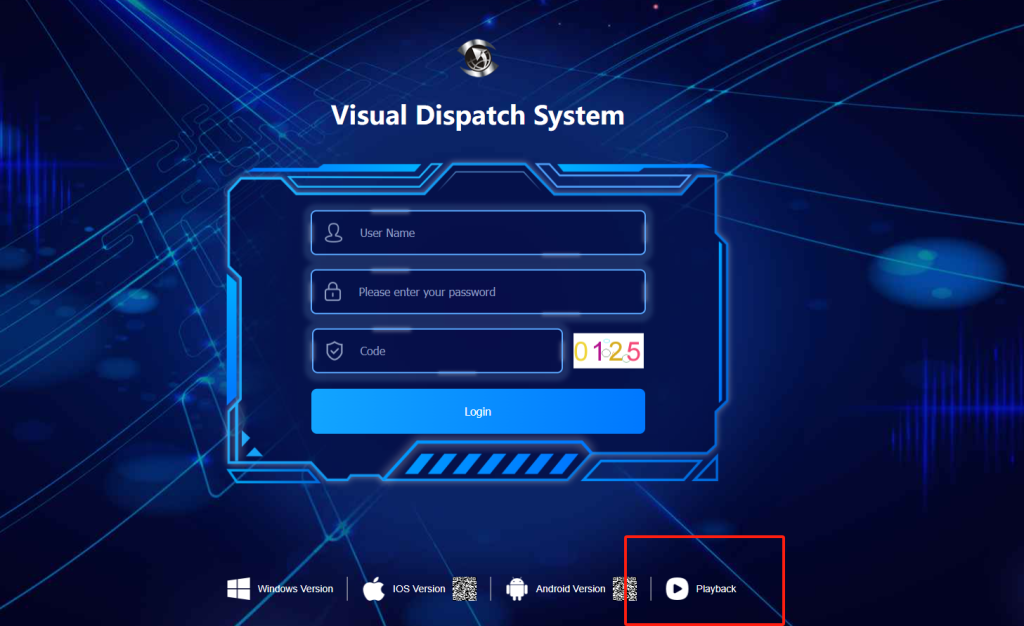
Solution 2: Use the “Playback Analysis Player”
If modifying the recording format doesn’t resolve the issue, the file may still be encoded in a proprietary format (such as .grec), which requires a dedicated player:
(Insert relevant screenshot of the player interface here)
The Playback Analysis Player is an official CMSV tool designed to support playback of videos in proprietary formats;
Once installed, it can directly open .grec format files without needing conversion;
You can visit the official CMSV download center as prompted in the client to download and install the player