Common Issues When Launching CMSV for the First Time After Installation
When users log in for the first time, some users are unable to log in and are prompted with the message
"Cannot connect to server."
This can typically be resolved by following these steps:
Verify CMSV Server IP Address
Ensure the IP address entered in the login interface matches the actual server IP.
Enable TCP Option
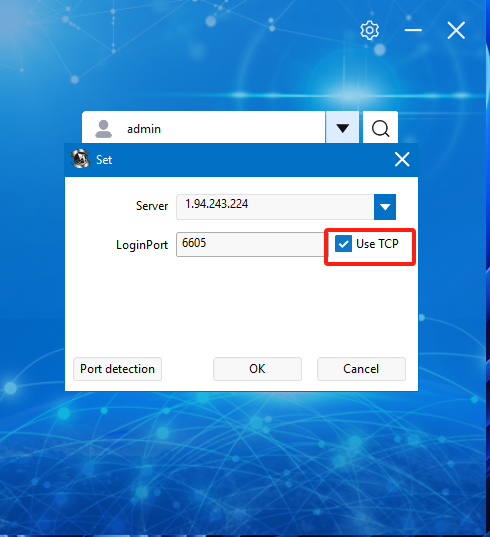
In the login window, click the "Settings" icon.
Check the box labeled “Use TCP” before attempting to log in again.
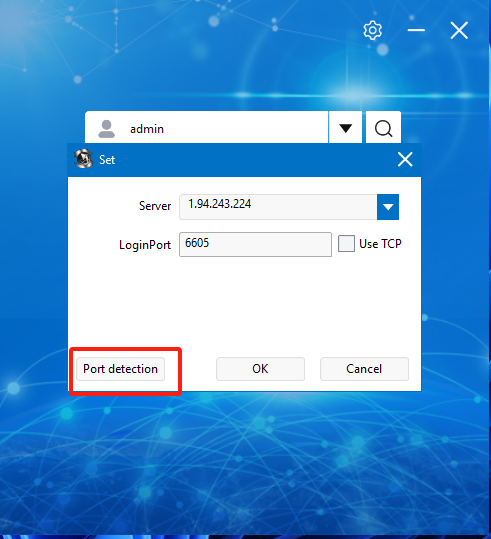
Check Server Port Availability
Confirm that all required CMSV server ports are open and not blocked by any firewall or security software.
Firewall Interference
If the above steps do not resolve the issue, the most likely cause is interference from local firewall settings or antivirus software.
As a quick workaround, install CMSV on another computer and attempt login from there — this often resolves the issue immediately.